
Browser Search Method | GOSAT-GW TANSO-3 Product Archive
- Browser search method overview
- G3PA allows you to search and download products from your browser. This page explains how to search and download products using a browser.
- Browser search method
- Search item
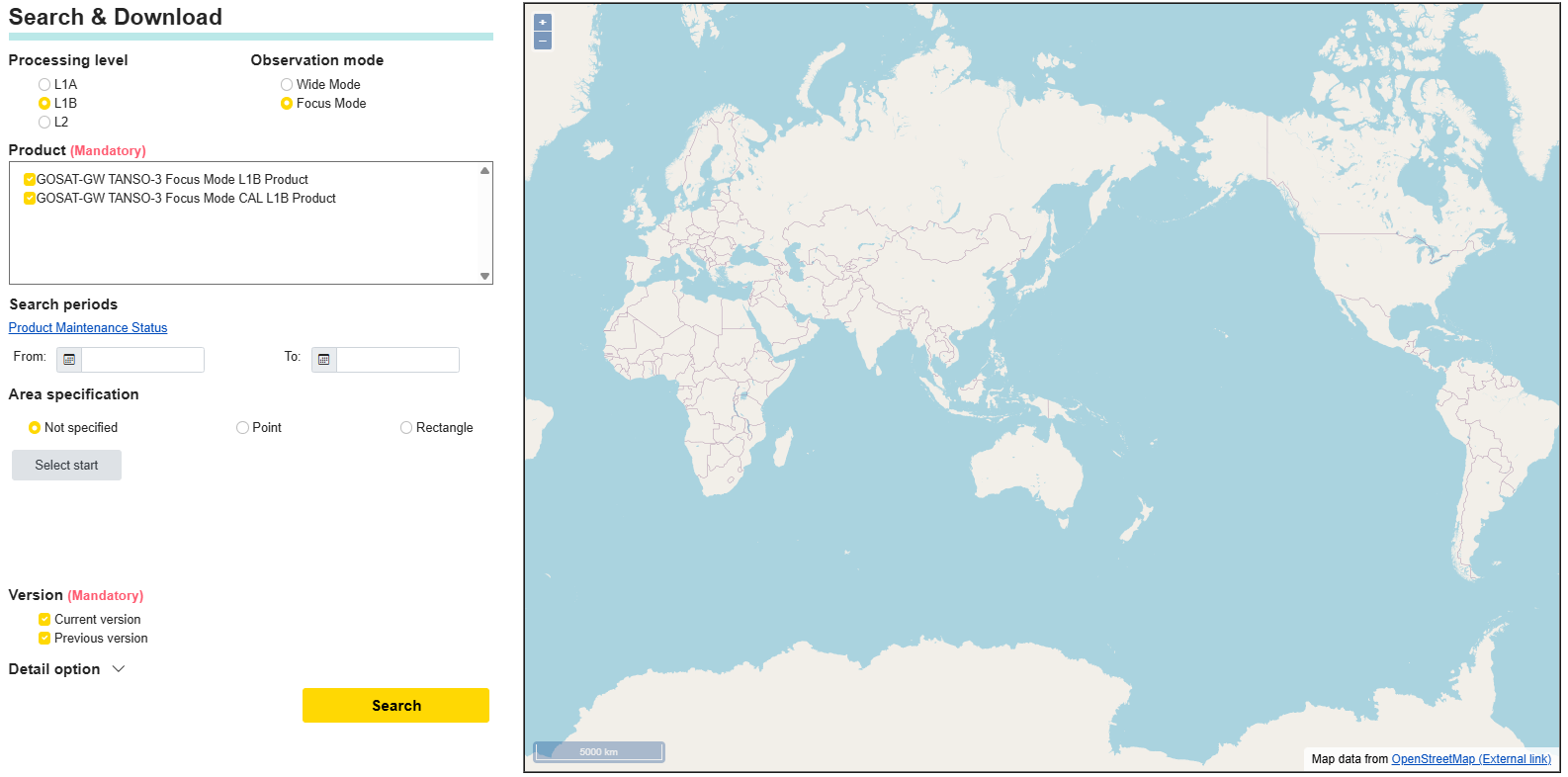
- The search screen is shown below, and each item can be selected according to what you want to search.
- Select product
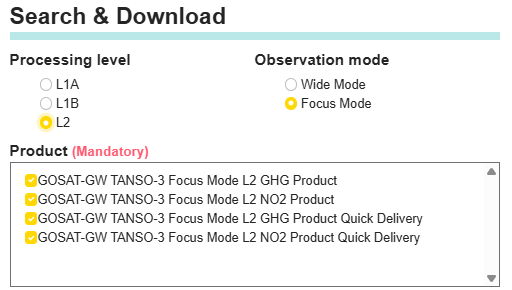
- To select a product, switch between Processing Level and Observation Mode, and the corresponding product will be displayed. If multiple products are displayed, it is possible to select more than one.
- Specify version
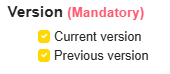
- Version specifies whether to include the latest or one generation earlier as the search target. Either must be enabled.
- Select a search period
-
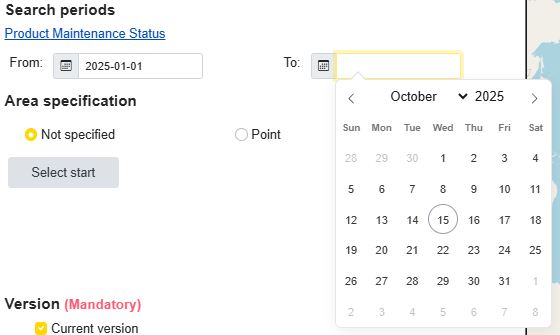
You can search without selecting a time period, but if you want to limit the search target, set the search start
and end dates.
You can check the level of maintenance of the product you want to search from the "Product Maintenance Status". You cannot specify either the start date or the end date. Both must be specified. - Select an area
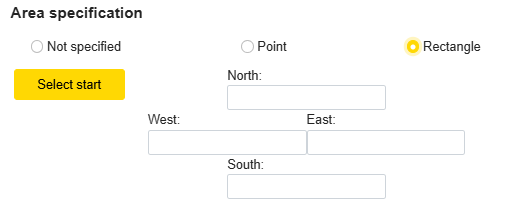
- To specify an area, select a point or rectangle and enter the value directly in the input field, or Click the "Select Start" button and select a point or rectangle on the map.
-
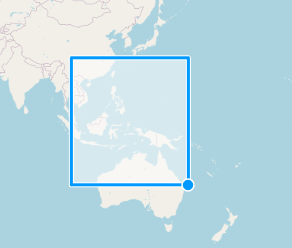
To select a rectangle, click on a point on the map to specify a starting point. Click again to determine the
search area.
※Map data is from OpenStreetMap, and place names are in local language. - Search
- The search is initiated by clicking on the Search button.
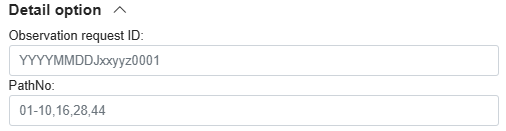
- Detail option
-
Basically, the above parameters are sufficient for a search,
and advanced options can be specified for more detailed searches.
The observation request ID is an ID issued when you apply for a satellite observation, and is specified when you wish to search for data you have applied by yourself.
The path number specifies the path number at the start of the first-frame observation. For definitions of "path number" and "path number at the start of the first-frame observation," please refer to Appendix 1, "Definitions of Terms," in the User Manual.

- Browser download method
- Search result
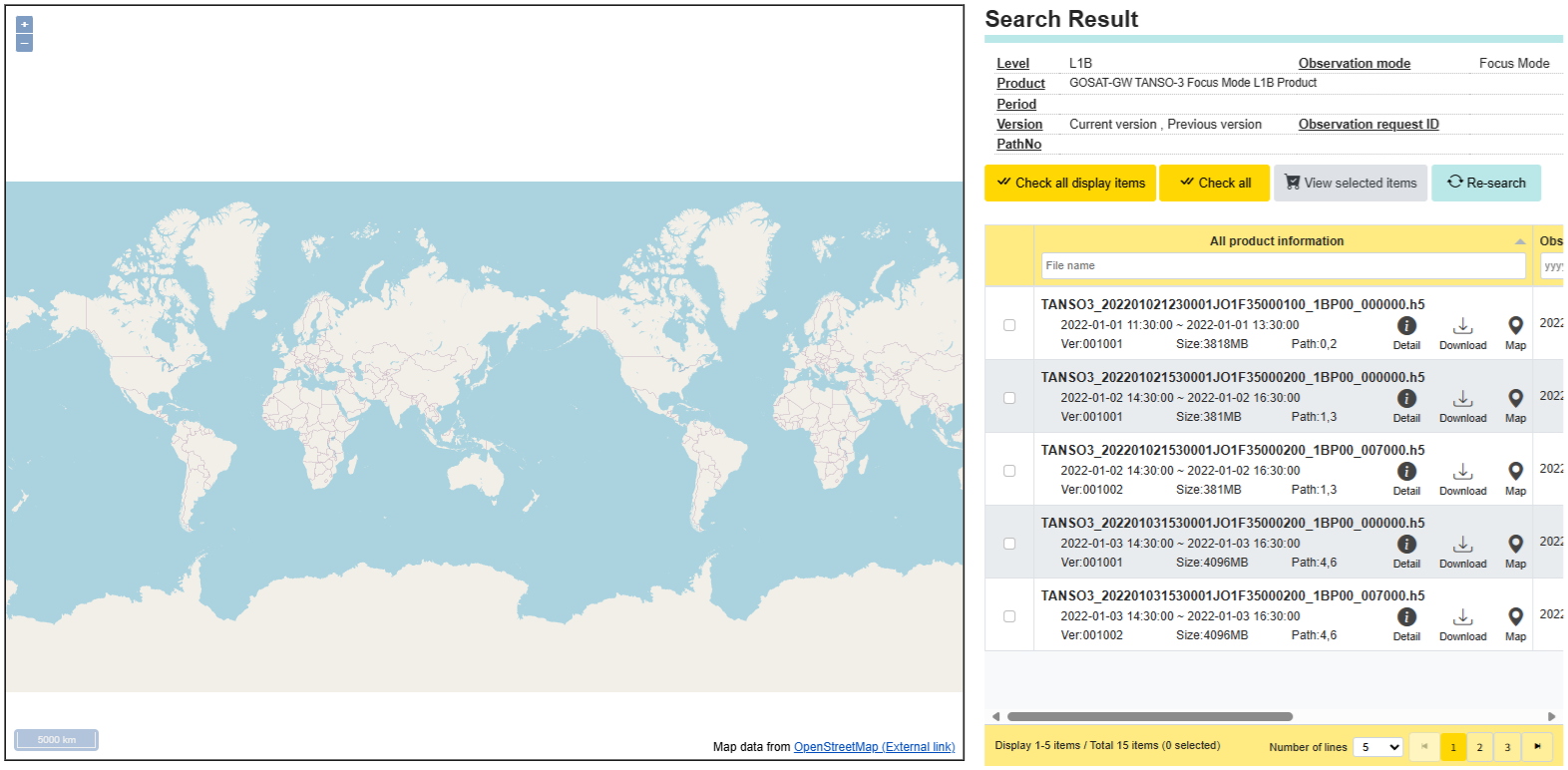
- If the search is complete and search results exist, you will be taken to the search results screen below.
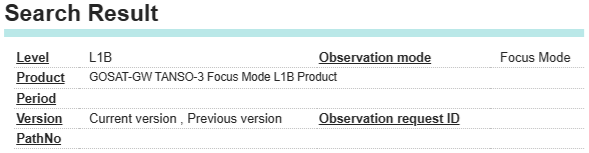
- Confirmation of search contents
- You can see here what you have specified in your search.
- Product list
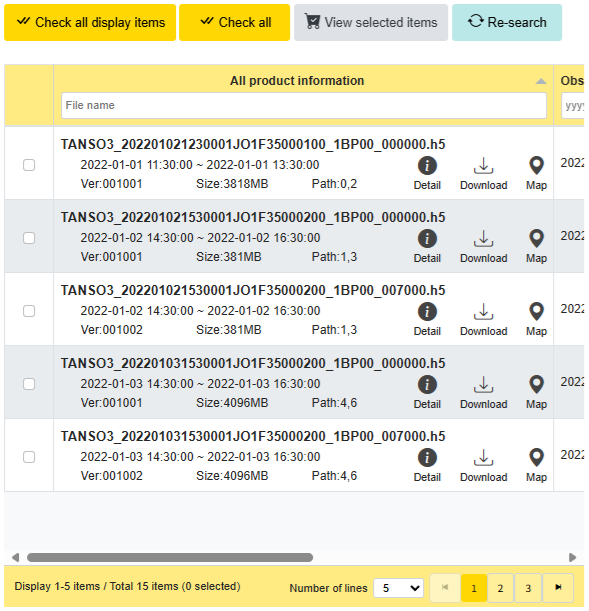
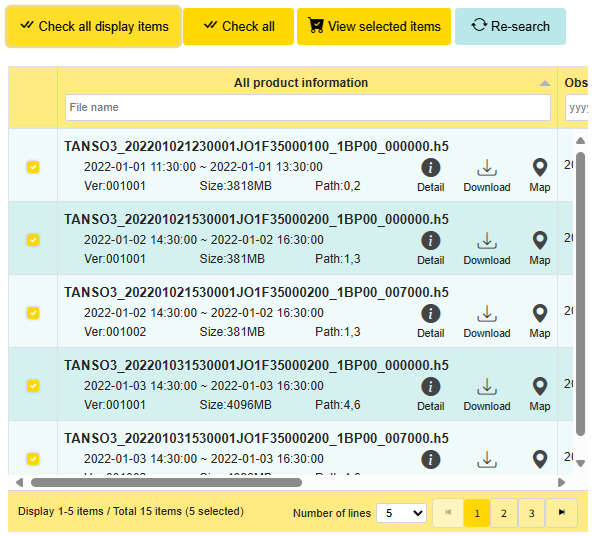
- The list of search results is displayed in this format. Each product has a map display checkbox, a select checkbox, a detail icon, and a download icon which can be used to perform operations.
- Map display checkbox
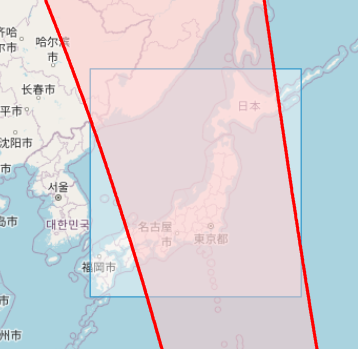
- By selecting the map display checkbox, the observed area of the selected product will be displayed on the map. Multiple products can be selected and displayed.
- Select checkbox
- Selecting the select checkbox enables the corresponding product as a download target. Multiple selections are possible.
- Detail icon
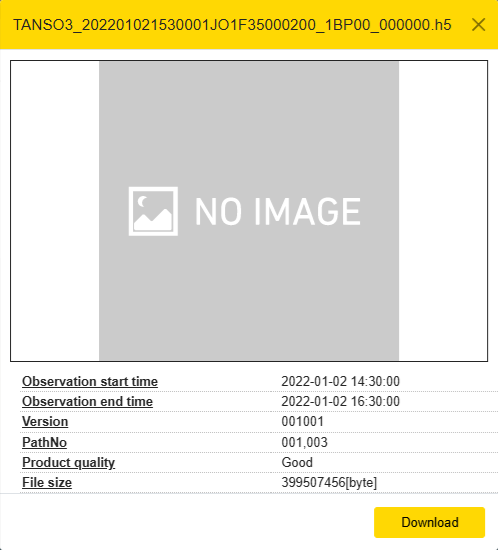
- By selecting the detail icon, detailed information about the product will be displayed. You can also download the product from this screen.
- Download icon
- Selecting the download icon will initiate the download.
- Check all display items
- Selects all checkboxes labeled "Select" for the products currently displayed on the screen and enables them as download targets. Clicking it again deselects those checkboxes and removes the products from the download targets.
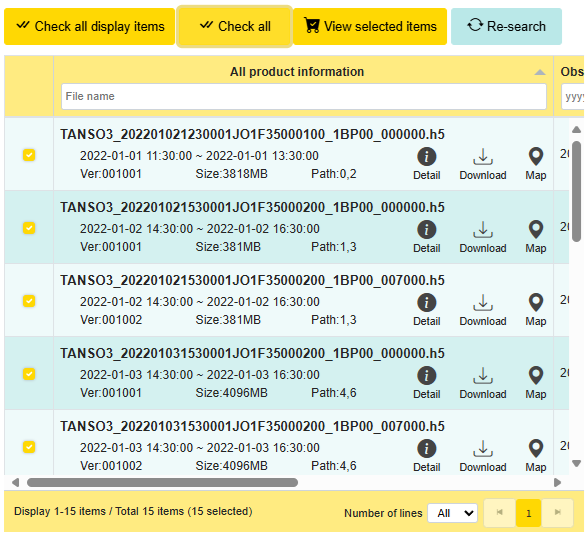
- Check All
- Selects all checkboxes labeled "Select" for the products displayed in the search results and enables them as download targets. Clicking it again deselects those checkboxes and removes the products from the download targets.
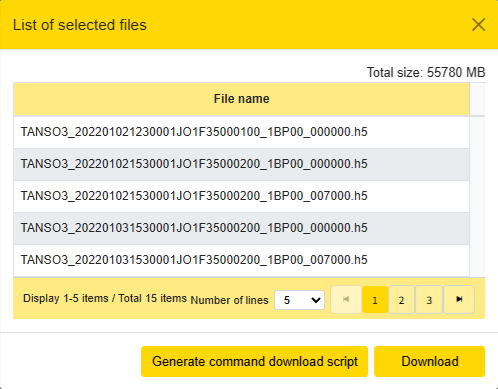
- View selected items
-
The cart window becomes enabled when you select one or more select checkboxes for the products.
The cart displays the currently selected products.
To download the selected items later from the user’s device, select the Download Script Acquisition button. To download all selected files, select the Download button to start the download.
If the number of files or file size is large, the download may take some time. - Select OK in the dialog box to abort the download.
- Re-search
- If you want to change the search criteria, such as re-search or too many results, you can return to the search screen by selecting the Re-search button. The current search results are discarded, so if you want to check the same results, you must search again.